Brux eGuard

The Brux eGuard Android app connects to MR EMG sensors (and the Polar H10) to record, visualise and export your data.

Download the appSetup guide
Android Bluetooth LE EMG + heart rate CSV export
Start Here

Install app

Download the latest APK from App versions below and open it on your Android phone to install.

Permissions

Grant these three permissions so the app can talk to your sensor.

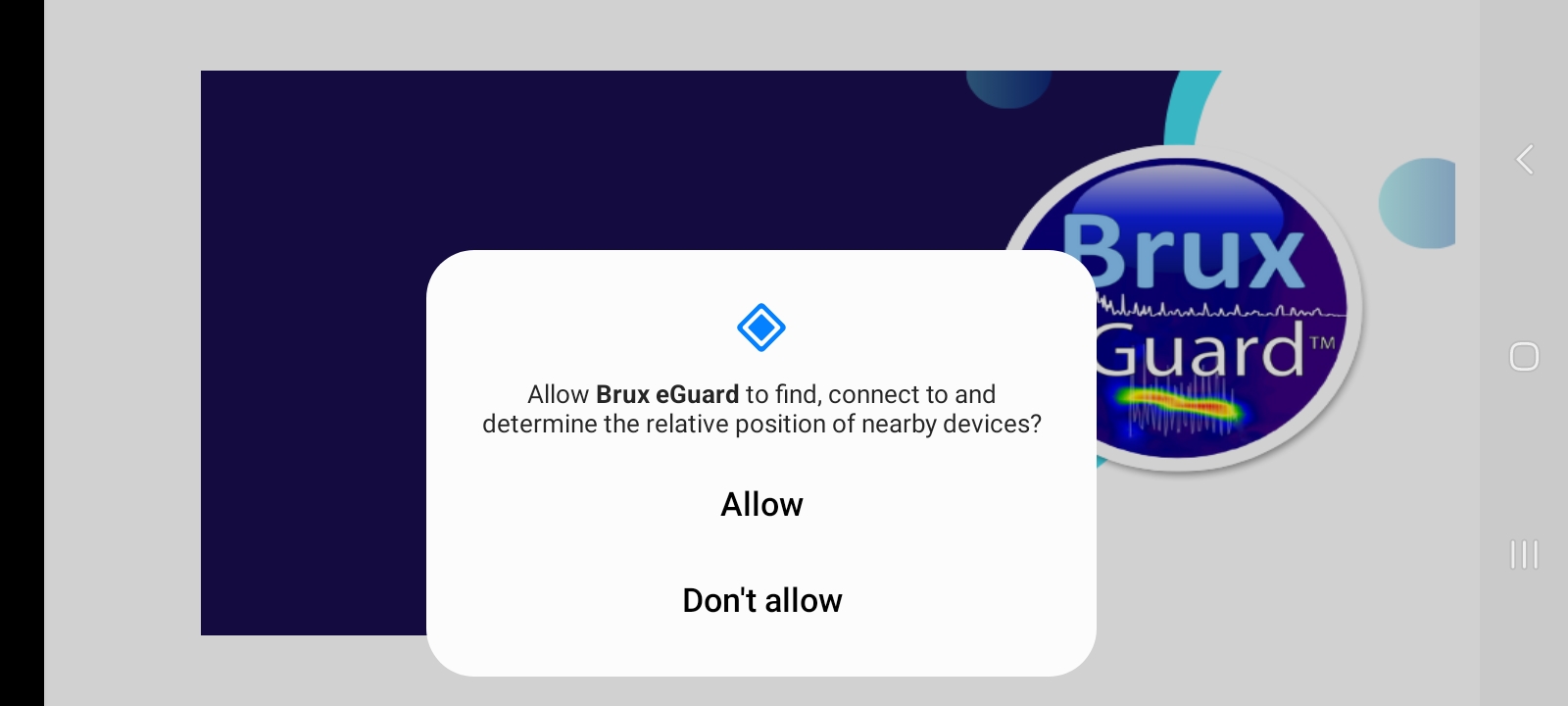
Nearby devices

Allow Brux eGuard to discover and connect to nearby devices, specifically MR EMG sensors.
Sensor attached to skin

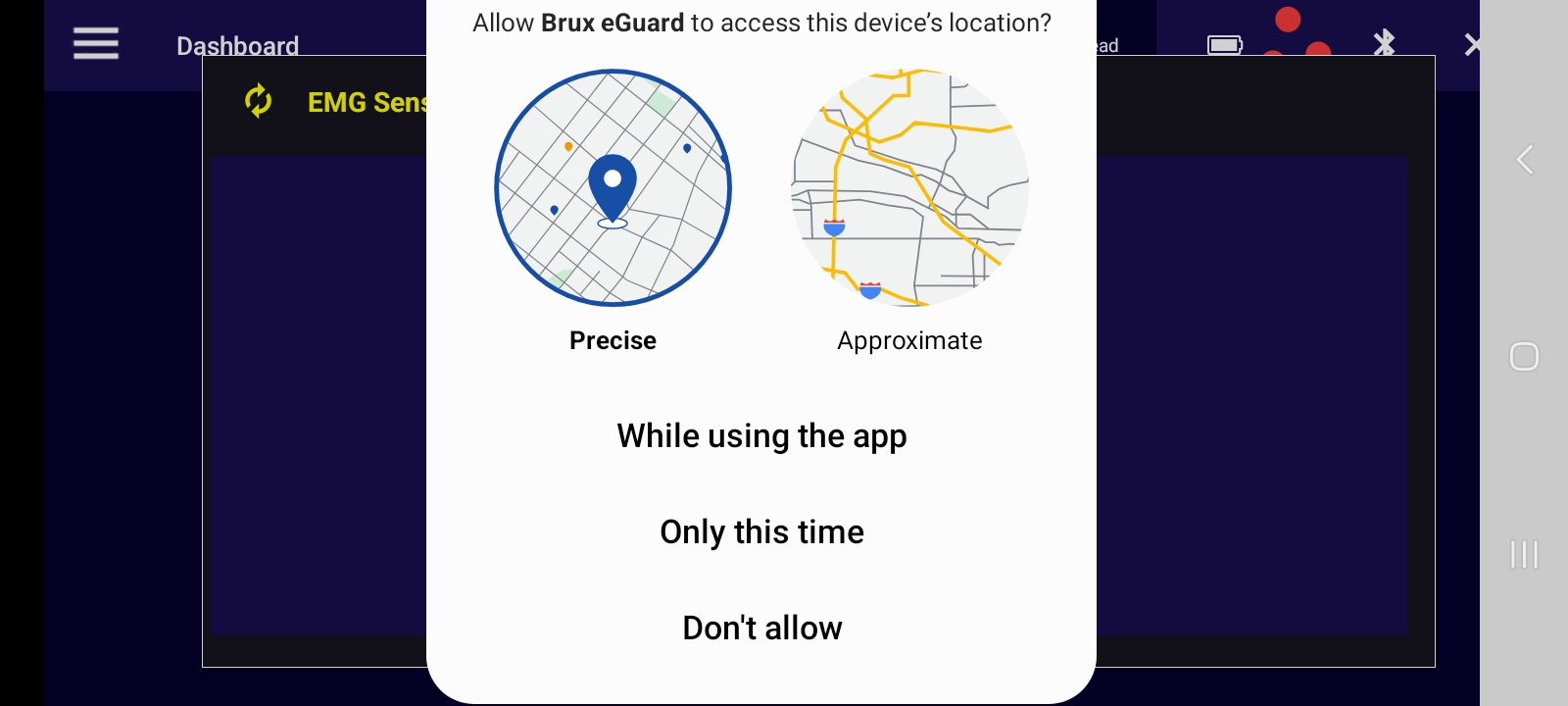
Device location

Needed for Bluetooth to work. We do not track any location. Choose While using the app.
Sensor attached to skin

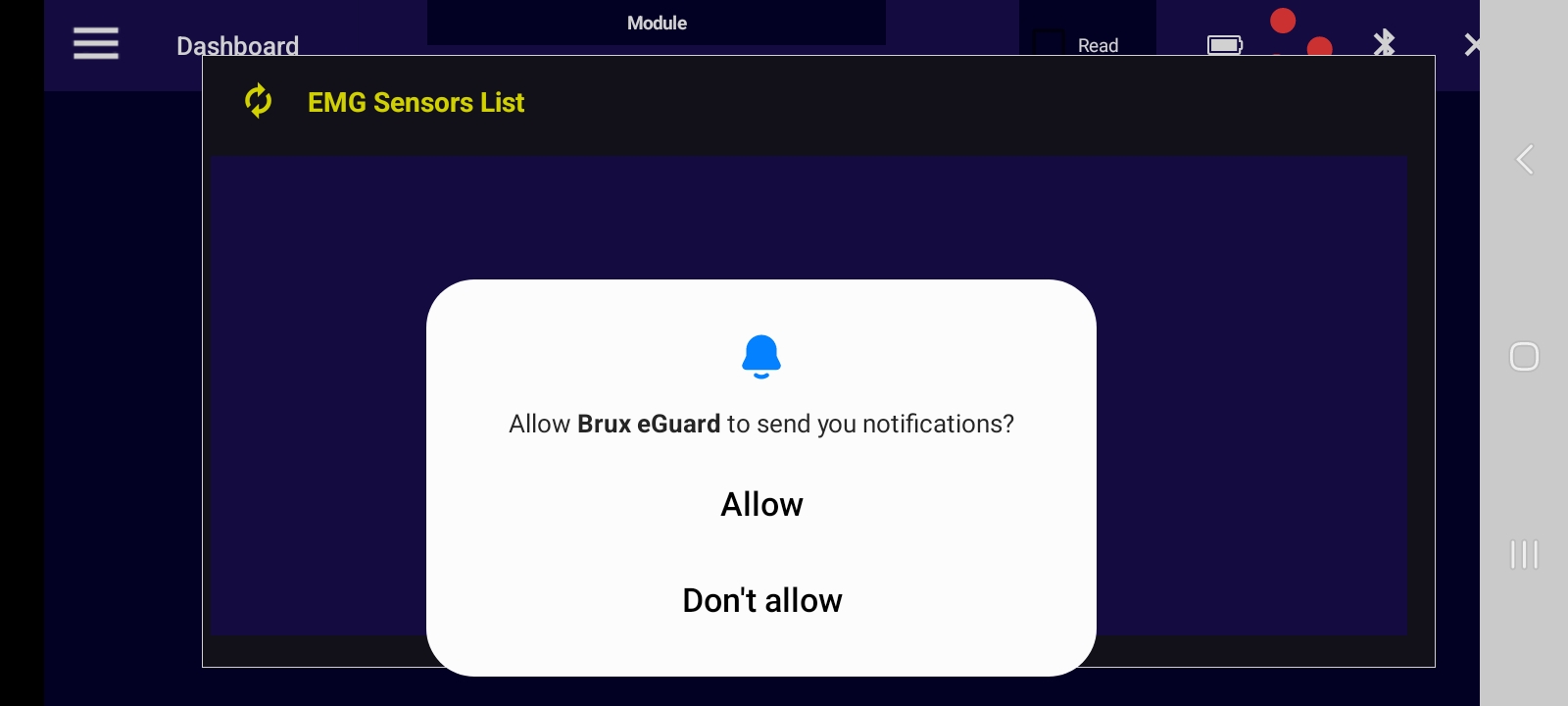
Notifications

Lets the app deliver the latest readings from your MR EMG sensors.

Sensor attached to skin
Launching Brux eGuard App

From sticking on the sensor to exporting your recording.

  1. Attach the sensor

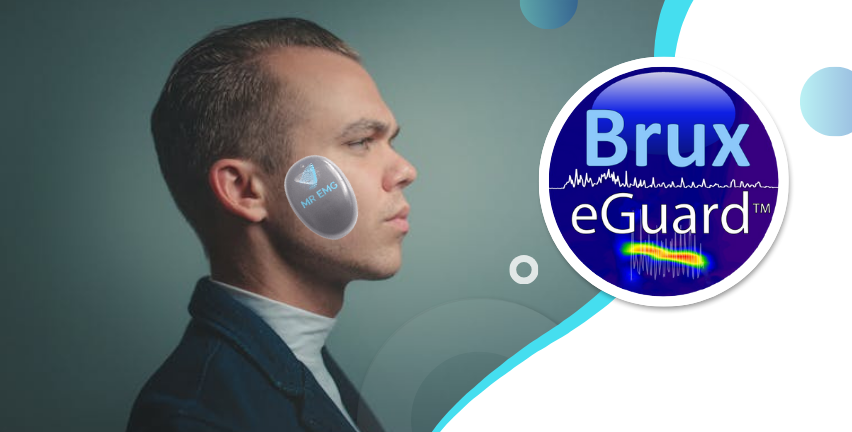
    Before you begin, stick the sensor onto your skin.
  2. Connect

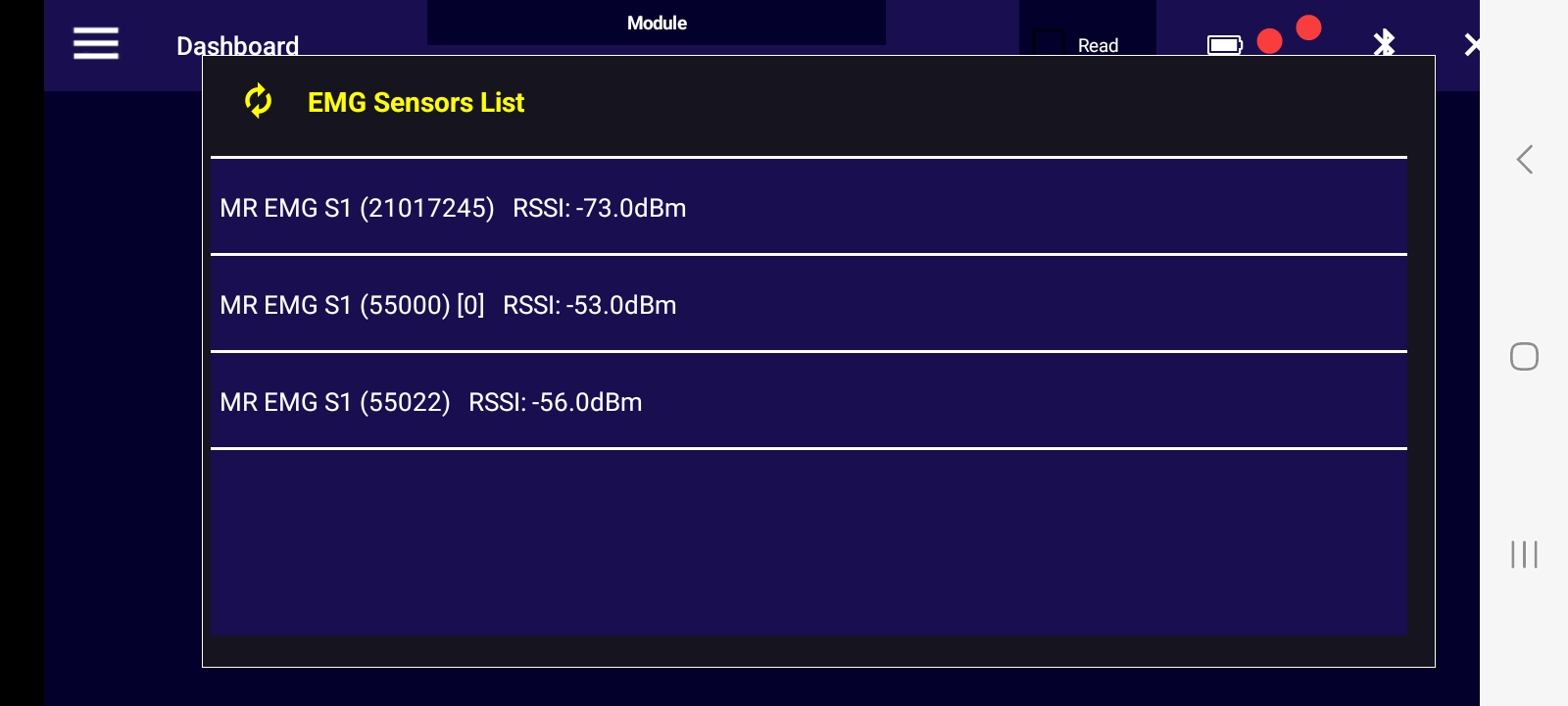
    Start the app and choose an MR EMG sensor from the list. If needed, tap the yellow refresh icon on the left to show all nearby sensors.
  3. Calibrate

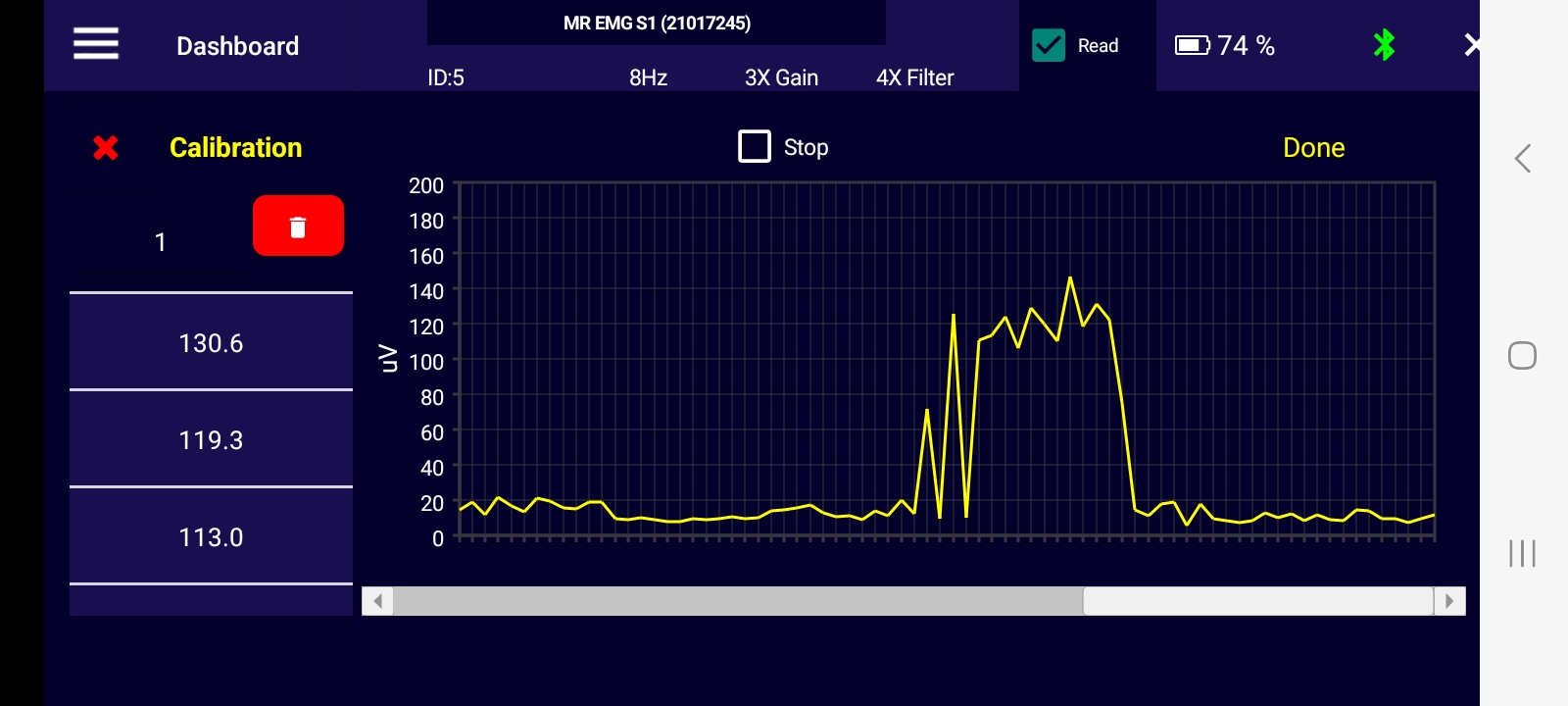
    Pick a calibration value from the chart or type it in the box on the left, then tap DONE. Optional: tap Stop to pause the reading while you choose.
  4. Record

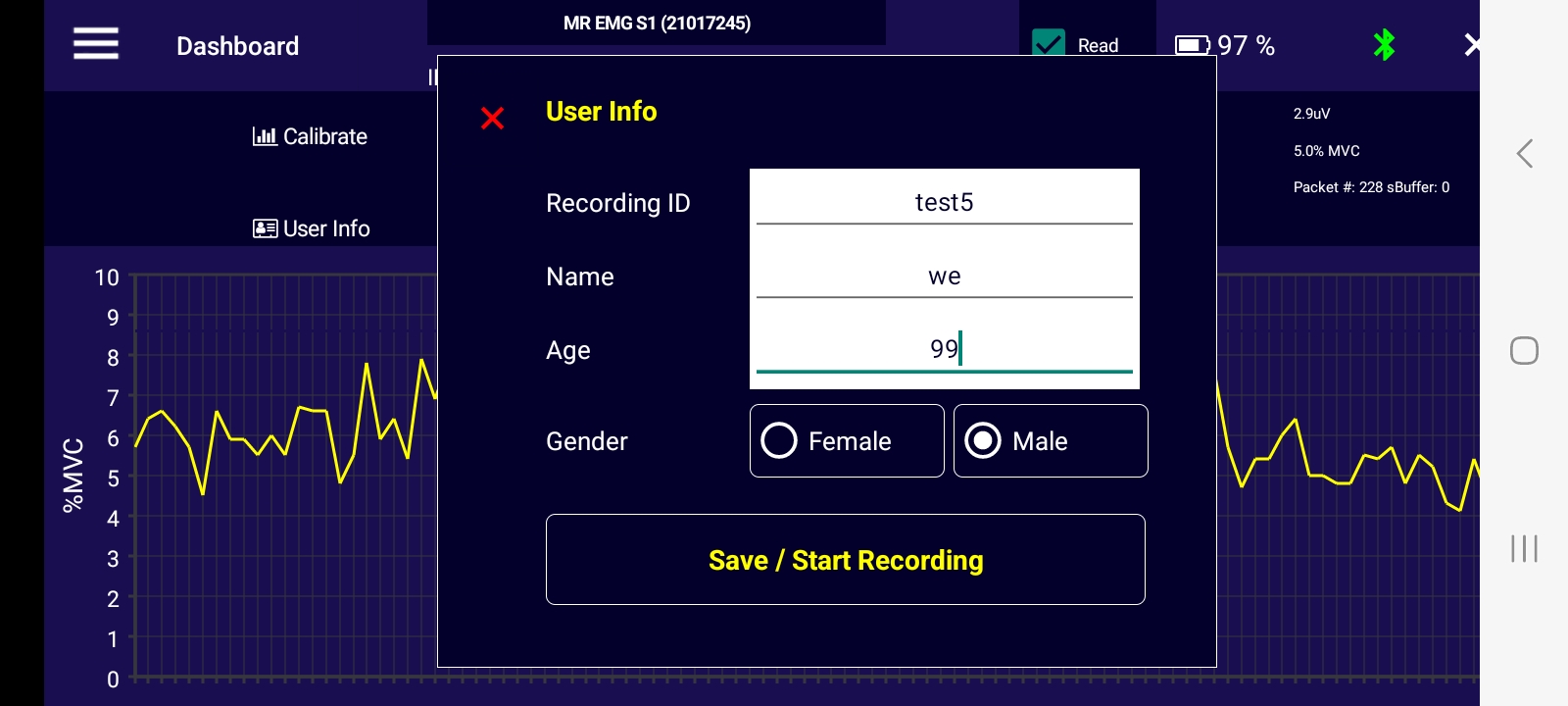
    Fill in the form under User info (e.g. Recording ID 86, Name, Age 99, Gender), then tap Save/Start Recording Recording starts automatically.
  5. Recording options

    While recording, tag activities such as eating, sleeping, drinking, or type your own (e.g. “sport”). Sleeping: turns the sensor LED off; any other option turns it back on.
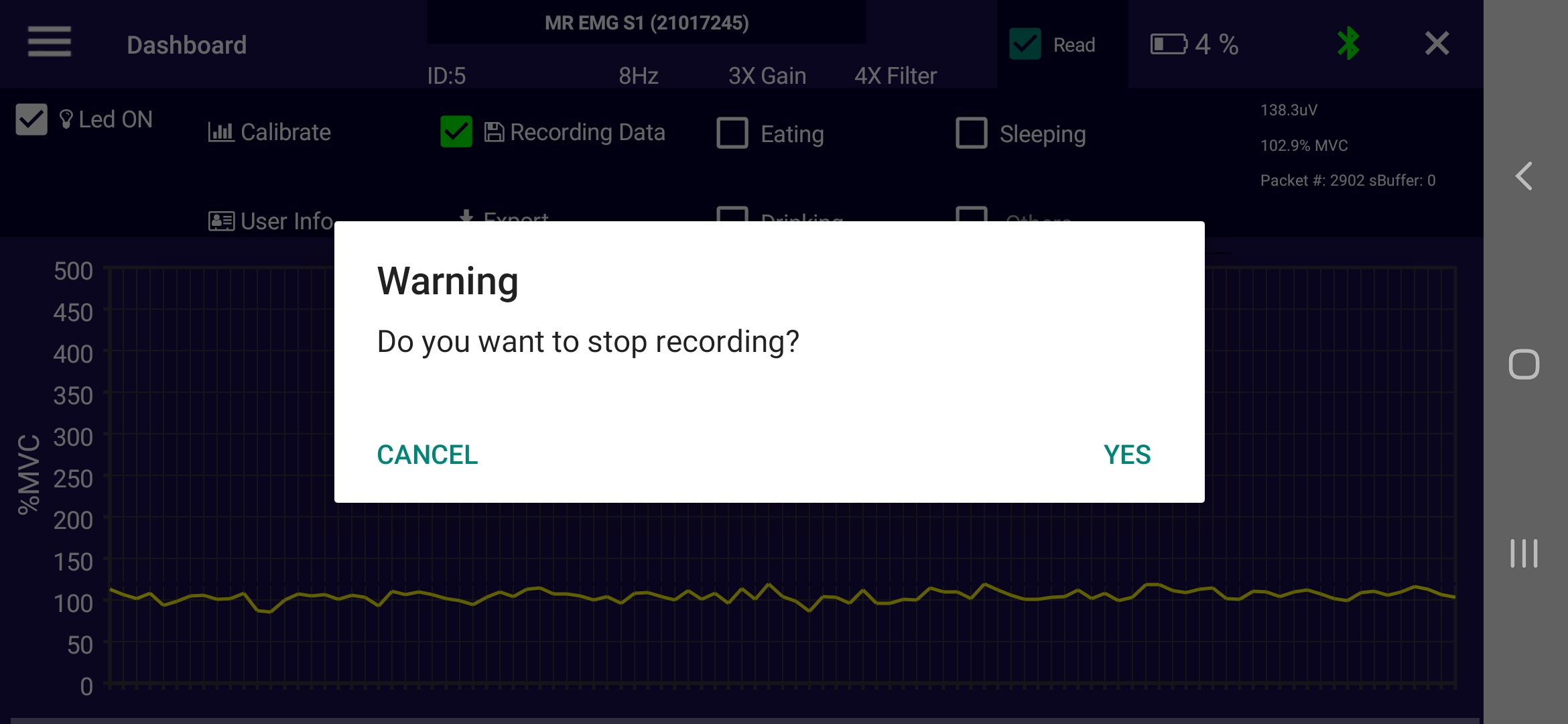
    Stop: tap near the left edge (by “Led ON”) and confirm YES. Export: Save the file to your phone. Restart the app if it was closed then click left menu, then select Export. Continue: tap “Recording Stopped” to resume in the same file.
  6. Disconnect

    Tap the X at the top right to disconnect. The sensor list opens so you can pick another sensor or close the app.

    Disconnect button: use it only in emergencies, such as when the app becomes unresponsive and/or keeps playing a sound.
  7. Add a Polar H10

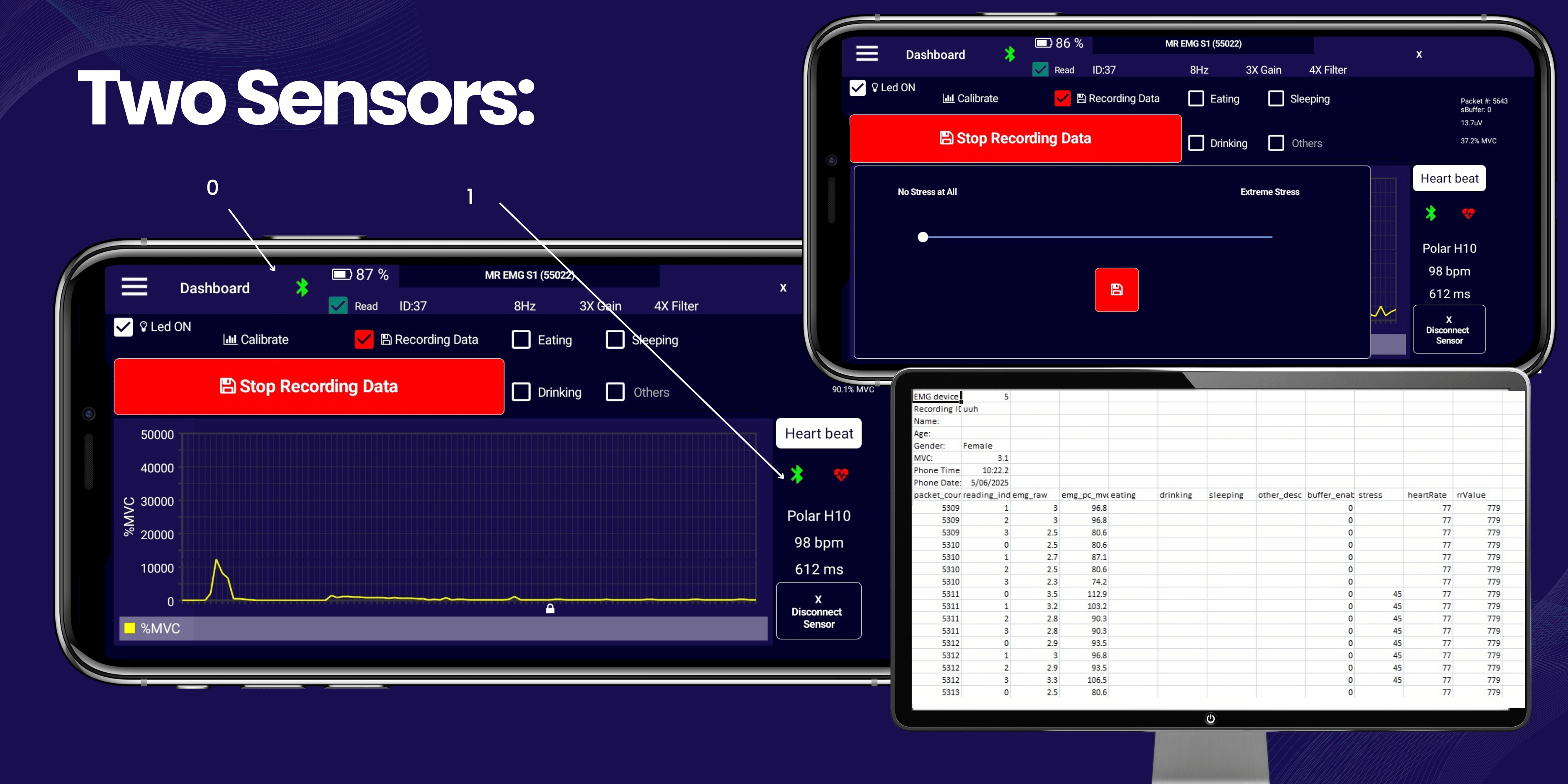
    Connect the MR EMG sensor first, then tap the Bluetooth icon. The app finds and connects to the Polar H10 automatically.
Exploring the app menu features

Swipe or use the arrows to browse the screenshots for each menu item.

1. Dashboard

Information will be updated as soon as possible.

2. EMG sensor list

Information will be updated as soon as possible.

3. EMG settings

Information will be updated as soon as possible.

4. Support

Information will be updated as soon as possible.

5. EMG sensor information

Information will be updated as soon as possible.

Issue reports

Found a problem? Tell us what happened and we will look into it. The more detail, the better.

Send report by email Opens your email app, addressed to mauro.farella@otago.ac.nz. Please attach the CSV file if relevant.

Frequently asked questions


1.0 No sensor listed in the app

Make sure Bluetooth and location are on, and the sensor is close to your phone.

Check the sensor battery: the LED should blink on and off. Tap refresh to update the list, and confirm the permissions above are granted.

2.0 Do I always need to be near my phone?

Ideally yes, but you can step away briefly: the sensor records internally using its smart buffer. When you return, the app asks you to unlock the screen to reconnect.

While you’re away, a sound reminds you to take your phone with you. It stops once the sensor reconnects.

3.0 Which sensor is mine when several are nearby?

Bring the sensor close to your phone and refresh the list: its RSSI value changes. A signal of −33 dBm is closer than −65 dBm.

4.0 Is the app compatible with my phone?

It runs on Android 10 or higher. Tested on Android 10, 11, 12, 13, 14 and, preliminarily, 16. If you have issues on another version, please reach out.

5.0 How to recover data if the app crashes?

Restart the app if it was closed;

Click the left menu, then select Export.

App versions

Tap a version name to download the APK.
QR code to download the app
av3.2.6Latest
  • Preliminary support for Android 16.
  • Temporary solution, needs further testing. v3.2.5 is not compatible with Android 16.
  • Also tested on Android 10, 11, 13 and 14.
av3.2.5 · av3.2.4 · av3.2.3
Test version: stress data save
  • Stress popup every 1–2 min, between 1am and 11pm (3.2.3).
  • CSV stress column is empty until the first value is saved, then keeps the last saved value until updated (3.2.3).
  • Popup starts when recording starts; stress value on screen as originally designed (3.2.4).
  • Back to smart popup: at least 30 min apart, randomised 30–60 min windows, 8am–8pm (3.2.5).
av3.2.2
Stress monitoring status
  • Clear ON/OFF status button for stress bar notifications.
  • Stress bar only visible when notifications are on.
av3.2.1
Stress monitoring
  • Works continuously, even with the screen off.
  • Smart popup: 30+ min between reminders, randomised 30–60 min, active 8am–8pm phone time.
  • Enable via the bell icon in the User Info panel (top right); stops when you stop recording.
  • Non-intrusive: skips if the stress panel is open and requires saving before the next reminder.
  • Foreground service notifications and smartwatch notifications.
  • Sensor fusion: heartbeat and EMG together with stress monitoring.
Older versions (3.1.6 → 2.2.6)
av3.1.6
  • New Stop Record button colour; removed the disconnect button near the HR area.
av3.1.5
  • Disconnect restored to its v2.2.7 behaviour and now also disconnects the Polar H10.
  • New Stop Recording button, visible only while recording; Share/Export removed from the dashboard.
  • LED button is visual only; LED is controlled by Sleeping mode.
  • Polar H10: Bluetooth icon turns green when connected and red when not; automatic reading, loading spinner, invalid data ignored, auto-disconnect after 10 s without valid data, automatic reconnect.
  • A value of −1 in “heartRate” or “rrValue” means no valid data at that time.
av3.0.6
  • Bigger white Disconnect button (emergency use only); “User Info” renamed “Start Recording”; new stress labels.
  • Random stress popup at most once per hour, 30+ min apart; HR and HRV saved to the main spreadsheet.
av3.0.5
  • Polar H10 added (connection and display working); LED control back.
av3.0.1
  • Layout redesigned; stress bar appears every 2 min for testing.
av2.3.6
  • Prompts to save after stopping; graph keeps moving at 0.0 µV; stress bar hidden.
av2.3.5
  • Gradual sound fade with 35 s pause; X button restored; Export & Share in left menu; Stop button replaces X.
av2.3.2
  • Share CSV; new logo and name; alert volume maxes out when connection is lost.
av2.2.8
  • Simple phone lock screen can now be used.
av2.2.7
  • Sound alert on background connection loss; X button disconnects the sensor.